Developer Monitor Setup: Dual vs Ultrawide
Choosing the right monitor for coding — resolution, panel type, PPI, dual vs ultrawide trade-offs, and budget recommendations.
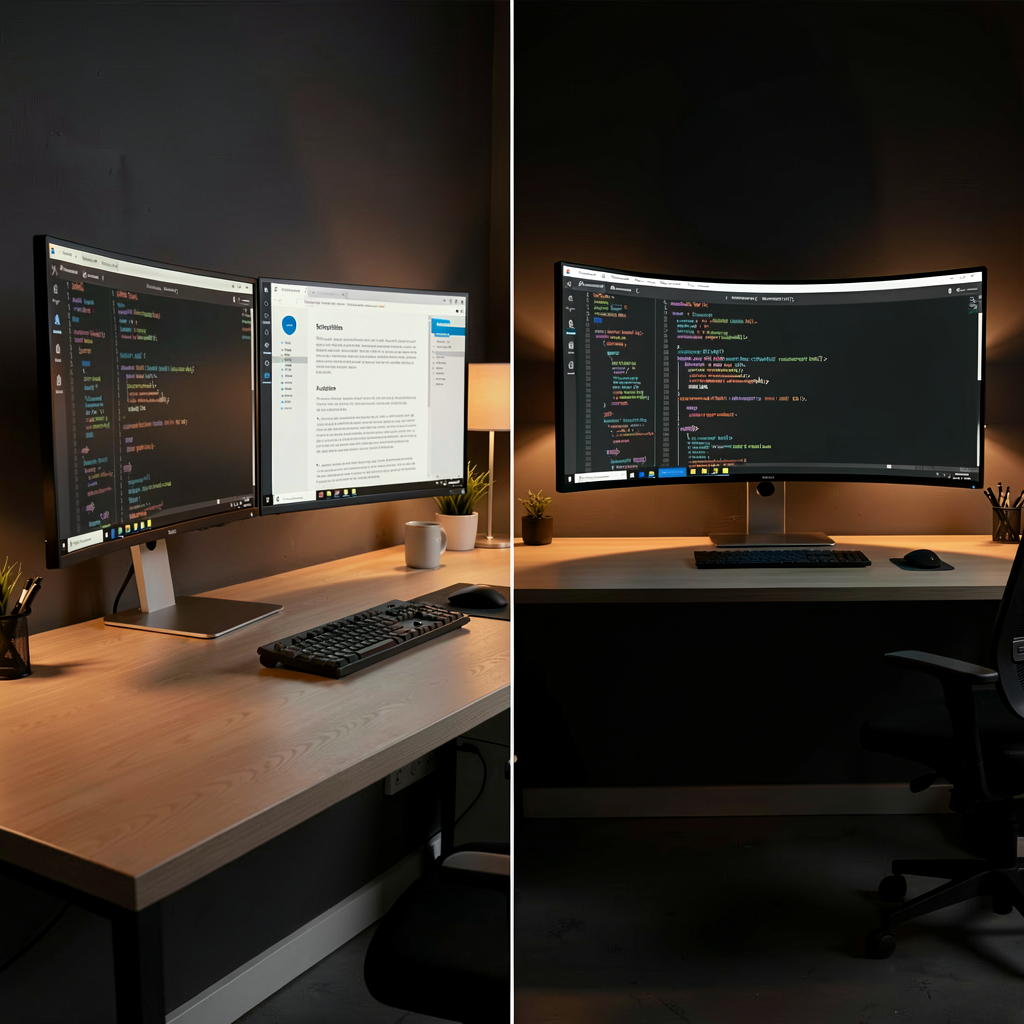
You stare at code 8+ hours a day, but somehow the monitor is the last thing people invest in. Keyboards and mice get agonized over. Monitors get bought on a whim. Meanwhile you're running VS Code, a browser, a terminal, and Slack on a single 24-inch 1080p screen, drowning in Alt+Tab.
Adding a second monitor or switching to an ultrawide changes the workflow noticeably. The question is which one.
What Matters for Coding
The priorities are different from gaming monitors. In order of importance:
1. Resolution and screen size — How much code fits on screen directly impacts productivity. FHD (1920x1080) looks blurry on anything above 24 inches. For 27", you want QHD (2560x1440) minimum. For 32", go 4K (3840x2160).
2. Panel type — IPS, VA, and OLED are the main options. IPS is the safest bet for development: good color accuracy, wide viewing angles, reasonable price. VA has higher contrast (dark themes look great) but narrower viewing angles — colors shift if you angle a dual setup. OLED is stunning but burn-in is a concern when you display a fixed IDE layout all day.
3. Text sharpness (PPI) — This matters more than most people realize. Same resolution on a bigger screen means lower PPI, which means less crisp text.
| Screen Size | FHD (1080p) | QHD (1440p) | 4K (2160p) |
|---|---|---|---|
| 24" | 92 PPI | 122 PPI | 184 PPI |
| 27" | 82 PPI | 109 PPI | 163 PPI |
| 32" | 69 PPI | 92 PPI | 138 PPI |
| 34" UW | — | 110 PPI (3440x1440) | — |
Below 100 PPI, text gets noticeably tiring over long sessions. The 27" QHD combo (109 PPI) is popular among developers for a reason.
Does Refresh Rate Matter for Coding?
Short answer: yes, but not as much as for gaming. Going from 60Hz to 144Hz makes scrolling smoother and cursor movement more fluid. You notice it when flying through code.
That said, don't pay a premium for it. Most 27" QHD IPS monitors ship at 100Hz+ now. No need for 240Hz, no reason to buy a 60Hz panel in 2026 either. Anything between 100–165Hz is the sweet spot.
Dual Monitor Setup
The most common configuration. Two monitors side by side — editor on one, browser (or terminal, docs, Slack) on the other. No window switching, just turn your head.
Pros
- Clear role separation. Left is code, right is reference material. Consistent spatial layout stabilizes your workflow.
- Redundancy. One dies, you still have the other.
- Flexible budget. Got a spare monitor lying around? Instant dual setup at no extra cost.
- Video calls work well — one screen for the meeting, one for actual work.
Cons
- The bezel sits in your center of vision. With two 27" monitors, you can angle them so one is the primary — problem solved.
- Takes up desk space. Two 27" monitors need 120cm+ of desk width.
- Mismatched specs mean different color temperatures, which is distracting. Buying two of the same model is ideal.
- Constantly turning your head one direction can cause neck strain.
Recommended Combos
Matching dual — Two 27" QHD IPS monitors. Clean, consistent. Around $400–600 for both.
Main + portrait — 32" 4K primary + 24" FHD secondary in portrait orientation. A vertical monitor is fantastic for reading logs, documentation, and code reviews — you see way more lines at once.
Ultrawide Setup
A single 21:9 display replaces two monitors. The 34" UWQHD (3440x1440) is the standard.
Pros
- No bezel. One seamless screen that splits into three zones — editor, terminal, and browser side by side.
- Better immersion. Your visual field focuses on one surface with less distraction.
- Better desk space efficiency than dual. One monitor arm, done.
- Cleaner aesthetics. One cable, one power cord.
Cons
- Pricey. 34" UWQHD IPS starts around $400–700, premium models over $1,000.
- You need window management software. macOS Magnet/Rectangle, Windows PowerToys FancyZones — without these, positioning windows is annoying.
- Three-way split on 3440x1440 gives each section ~1147x1440. Adequate for an editor, but not spacious.
- Screen sharing in video calls can be awkward with 21:9 aspect ratio. Share individual windows instead of the full screen.
Super Ultrawide?
49" 32:9 monitors (5120x1440) exist. Essentially two 27" QHD panels merged without a bezel. Prices start in the $1,500+ range. If you have the budget and desk space, worth considering.
The downside: it's so wide you have to turn your head to see the edges. The immersion benefit of ultrawide actually diminishes at this size.
Connectors — A Surprisingly Common Trap
Buying a monitor and discovering the cable doesn't match happens more often than you'd think.
USB-C (Thunderbolt) — Nearly essential for MacBook users. One cable handles video output, charging, and data. Check whether the monitor supports USB-C PD (Power Delivery) and at what wattage. 65W+ charges a MacBook Pro.
DisplayPort — Preferred for desktops. Higher bandwidth than HDMI, better for high-res and high-refresh combos. DP 1.4 handles 4K 120Hz.
HDMI — Most universal, but check the version. HDMI 2.0 caps at 4K 60Hz. HDMI 2.1 does 4K 120Hz. An HDMI 2.0 cable on a 2.1 monitor limits refresh rate.
Ergonomics
Height adjustment — Top of the monitor should align with or sit slightly below eye level. If the stock stand doesn't adjust, get a monitor arm or riser.
Tilt/Pivot — Tilt is basic. Pivot (90-degree rotation) lets you use a secondary monitor in portrait mode.
Monitor arms — Free up desk space and let you position the display exactly where you want it. For dual setups, get a dual arm. For ultrawides, get a sturdy single arm — they weigh 8–10kg and cheap arms will sag.
Desk depth matters too. With a 32"+ monitor, you need at least 60–70cm between your eyes and the screen for comfort.
Budget Recommendations
Under $300
One good 27" QHD IPS monitor. If you have a spare at home, attach it as a secondary for a dual setup.
$500–800
Two choices: matching 27" QHD dual setup, or one 34" UWQHD. Both are solid — depends on your working style. Heavy reference material? Dual. Deep focus on code? Ultrawide.
$1,000+
32" 4K primary (USB-C PD) + 27" QHD secondary, or 38" UWQHD+. At this budget, look for features like USB-C PD, built-in KVM switches, and DCI-P3 95%+ color gamut.
Software Setup Matters Too
Hardware alone isn't enough — tune the software side.
Scaling — 4K on macOS handles Retina automatically. On Windows, set display scaling to 150% or 175%. Otherwise text is comically small.
Window management — Almost mandatory for ultrawides. Rectangle or Magnet on macOS, PowerToys FancyZones on Windows. Split the screen into thirds or custom zones and snap windows with keyboard shortcuts.
Dark mode + blue light filter — You're looking at this screen all day. Dark theme in your editor plus the OS-level night shift filter helps reduce eye strain.
The Bottom Line
No single right answer, but the configurations with the highest satisfaction tend to be:
Starter — One 27" QHD IPS. If you outgrow it, buy the same model again for dual.
Solid — 34" UWQHD IPS at 100Hz+. Or two 27" QHD panels with a monitor arm.
Endgame — 32" 4K primary (USB-C PD) + 27" QHD secondary in portrait. Monitor arm required.
Monitors last 5–7 years. You swap keyboards on a whim, but monitors stick around. Spending a bit more upfront for the right setup pays off over time.