Home Server & NAS Guide: Synology vs DIY Build
NAS basics, pre-built vs DIY options, RAID, power consumption, and how to pick the right setup for your needs.
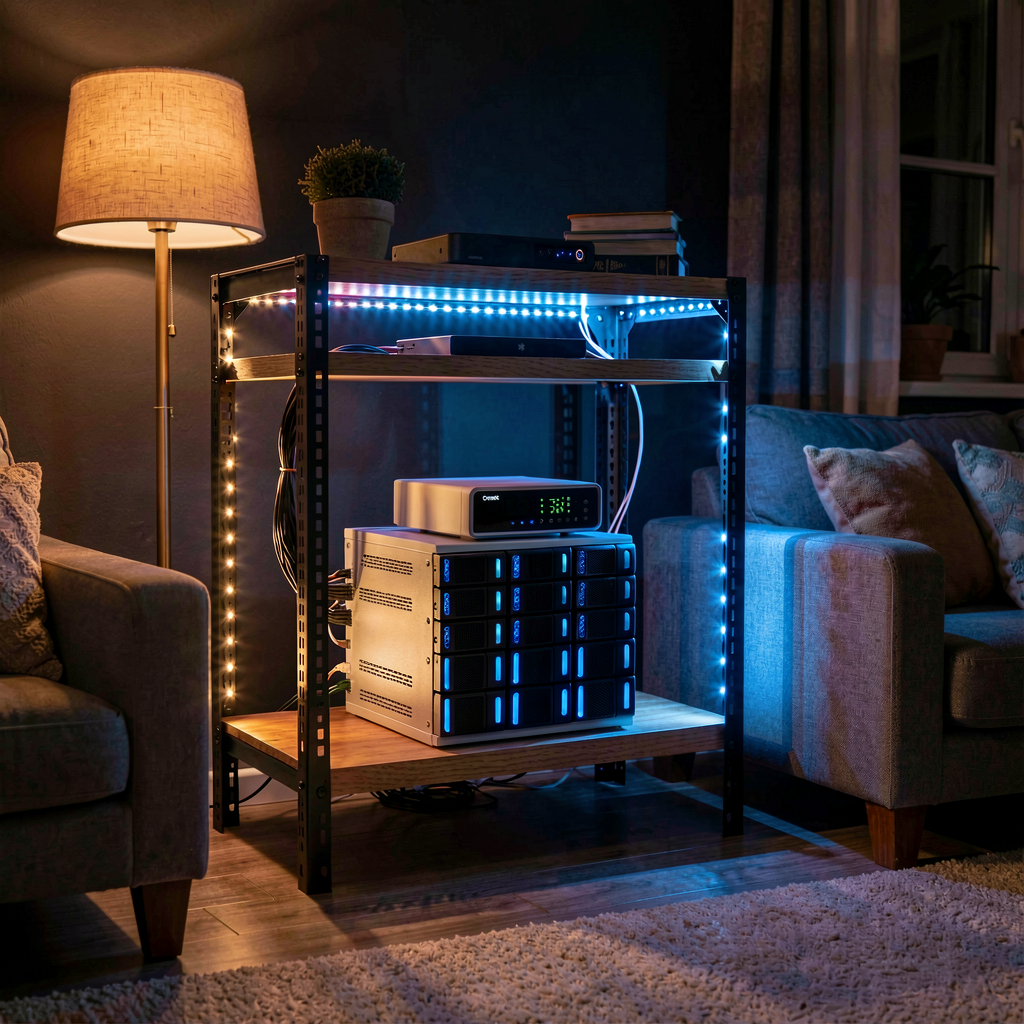
Cloud storage costs add up. Google One 2TB runs $10/month, iCloud+ 2TB is $10/month. Seems minor, but that is $120/year, and you pay that for 5, 10, 20 years. Add the anxiety about service shutdowns or sudden price hikes, and the math starts to look different.
A NAS can be the alternative. Your data on your hardware, accessible remotely, synced without cloud dependency. There is an upfront cost, but long-term it can be cheaper than cloud storage.
What a NAS Actually Is
Network Attached Storage. A small file server you keep at home, connected to your network. Any device on the same network can access it, and with the right configuration, you can reach it from anywhere.
How is this different from an external hard drive? An external drive needs a direct physical connection and only one device accesses it at a time. A NAS lets every device in your house — PC, Mac, phone, tablet, TV — access it simultaneously. Photos from your phone auto-backup to the NAS. Your TV streams movies stored on it. Files you worked on at the office are accessible from home. All at once.
What You Can Do With One
Data backup — the most basic use. Automatic backups from PCs, Macs, and phones. Works as a Time Machine server for Mac users too.
Media server — install Plex or Jellyfin and you get a Netflix-like interface for your own media collection. If you need 4K transcoding, you will want a reasonably capable CPU.
Photo management — a Google Photos replacement. Run Synology Photos or Immich for auto-classification, face recognition, no storage limits. Your photos, your server.
Docker host — this is where it gets interesting for developers. Run Docker containers on your NAS for self-hosted services: Home Assistant (smart home), Gitea (Git server), Nextcloud (cloud storage), AdGuard (DNS-level ad blocking), Vaultwarden (password manager), and more.
Dev server — lightweight web service testing, CI/CD runners, web scrapers. Run these at home instead of paying for cloud instances. Network quality matters here though.
Pre-Built NAS — Synology, QNAP
The biggest advantage of pre-built units is convenience. Pop in your drives, and the web UI guides you through everything. App ecosystems are mature, and you do not need Linux skills.
Synology
The market leader. DSM (DiskStation Manager), their proprietary OS, is intuitive enough for anyone. The app ecosystem is rich and the community is large.
Popular models:
| Model | Bays | Target | Price Range |
|---|---|---|---|
| DS224+ | 2-bay | Personal / small-scale | $280-$350 |
| DS423+ | 4-bay | Power users | $480-$550 |
| DS1525+ | 5-bay | Small office | $700-$850 |
Prices do not include drives. NAS-rated HDDs (Seagate IronWolf, WD Red Plus) run about $80-$120 for 4TB.
A 2-bay unit with two 4TB drives totals roughly $450-$550 all-in. Looks steep, but 5 years of cloud 2TB at $10/month is $600. From year four onward, the NAS is cheaper. And you get 8TB raw (4TB usable in RAID 1) versus the cloud's 2TB.
QNAP
Synology's main competitor. Hardware specs tend to be slightly better at the same price point — notably, 2.5GbE ports on budget models. However, software stability and security reputation trail Synology. Past ransomware targeting of QNAP devices means you need to be more diligent about security configuration.
Pre-Built Limitations
- Weak CPUs. Budget and mid-range models use Celeron or ARM chips — running many Docker containers gets sluggish
- Limited RAM expansion. Many start at 4GB with a max of 8-16GB
- Dollar for dollar, DIY hardware outperforms pre-built significantly
- Vendor lock-in. Synology in particular has been pushing policies that favor their own branded HDDs, which is controversial
DIY NAS — Freedom and Pain
Assemble your own hardware, install a NAS OS. Same money buys much more performance, but it requires more effort.
Hardware Options
Low-power mini PC — an Intel N100-based mini PC with an external HDD enclosure. Starting around $100-$150. Power draw is only 10-15W. Limited SATA ports restrict expandability though.
Used enterprise mini PCs — Dell OptiPlex Micro, HP EliteDesk Mini, Lenovo ThinkCentre Tiny. Pick one up used for $100-$200 and you get an i5 + 16GB RAM. More of a home server than a pure NAS, but it handles 10+ Docker containers without breaking a sweat.
Full DIY build — mATX board with an i3/i5, 16-32GB RAM, and an HBA card for SATA expansion. Needs a case that fits 4-6 HDDs. Cost runs $250-$400 excluding drives. Similar price to a Synology 4-bay unit, but several times the performance.
NAS OS Options
TrueNAS SCALE — ZFS-based filesystem. Strongest data integrity protection available. Prevents bit rot (data degradation over time), supports snapshots and auto-healing. ZFS is memory-hungry though — 8GB minimum, 16GB+ recommended. ECC RAM is nice but not required.
Unraid — annual subscription (Starter $49/yr, Unleashed $109/yr, Lifetime $279 one-time) but the most flexible option. Mix different-sized HDDs freely. Docker and VM management is straightforward. Add drives one at a time — great for starting small and expanding later. Frequently recommended for DIY NAS beginners.
OpenMediaVault (OMV) — free, Debian-based NAS OS. Lightweight with a decent web UI. Lower hardware requirements than TrueNAS — runs on a Raspberry Pi even (slowly). Feature expansion via plugins.
RAID — You Need to Understand This
RAID (Redundant Array of Independent Disks) combines multiple drives for reliability or speed. If you are using a NAS, RAID is a concept you must know.
RAID 1 (Mirroring) — two drives store identical data. One fails, the other has everything. Most common for 2-bay NAS units. Downside: two 4TB drives give you 4TB usable.
RAID 5 — three or more drives. Distributes parity data so one drive can fail without data loss. Four 4TB drives give you 12TB usable. Better space efficiency than RAID 1.
RAID 6 / RAID 10 — survive two simultaneous drive failures. Lower space efficiency or more drives required. Worth it when data is critical.
Synology SHR — Synology's proprietary RAID. Handles mixed-capacity drives without wasting space. Convenient, but Synology-only.
RAID is not backup. This is critically important. RAID protects against drive failure. It does not protect against ransomware, accidental deletion, or fire. Important data needs a separate backup — external drive, cloud, or both. Follow the 3-2-1 rule: 3 copies of data, on 2 different media types, with 1 offsite.
Power Consumption — Do Not Ignore This
A NAS runs 24/7. Ignoring power draw means surprise electricity bills.
| Setup | Idle Power | Annual Electricity (~$0.13/kWh) |
|---|---|---|
| Synology 2-bay (2 HDDs) | 15-25W | ~$17-$28 |
| DIY N100 + 2 HDDs | 15-20W | ~$17-$23 |
| DIY i5 + 4 HDDs | 40-60W | ~$46-$68 |
| DIY high-perf server | 80-120W | ~$91-$137 |
A 2-bay pre-built or mini PC setup has negligible electricity cost. But i5+ builds with 4+ HDDs add $4-$6 per month. Not a budget-breaker, but include it when calculating whether NAS is actually cheaper than cloud.
HDDs consume more power than SSDs since the platters physically spin. But NAS-capacity SSDs cost several times more per TB, so most people use HDDs. Setting idle drives to spin down helps reduce power draw.
Networking — This Is Where Bottlenecks Happen
The real performance bottleneck in a NAS setup is often the network, not CPU or RAM.
1GbE — what most NAS units and routers have. Theoretical 125MB/s, real-world 100-110MB/s. Sufficient for general file transfers and video streaming, including 4K.
2.5GbE — showing up in newer NAS units and routers. About 250MB/s real-world. Noticeable improvement for large file transfers. Existing Cat5e cables support 2.5GbE, so no rewiring needed.
10GbE — pro territory. Video editors pulling 4K/8K source files directly from a NAS for editing. Overkill for most home users.
If your router is 1GbE but your NAS has 2.5GbE, it does not matter. The network runs at the speed of the slowest link. Check the full path: NAS -> cable -> router/switch -> cable -> PC. Any slow segment is your bottleneck.
Pre-Built vs DIY — Which Fits You
Go pre-built if:
- You have no Linux or server administration experience
- You want something stable and low-maintenance
- 2-4 bays is enough
- Official support and regular updates matter to you
Go DIY if:
- You are comfortable with Linux basics
- You plan to run multiple Docker containers
- You want maximum hardware bang for your buck
- You enjoy the setup process itself
Neither choice is wrong. Pre-built units seem expensive, but factor in the time cost and they are not unreasonable. DIY seems cheap, but if you convert your setup time to an hourly rate, you may have already exceeded the pre-built price.
If this is your first NAS, a Synology 2-bay with two 4TB drives in RAID 1 is the safest starting point. Experience the value a NAS brings, and if you want more, upgrade to a DIY build later. No rush.